
The EPP code (also called an authorization code or auth code) is a short password for your domain that other registrars require when you transfer it away from CanSpace. This article walks through retrieving it from your client area.
Steps
-
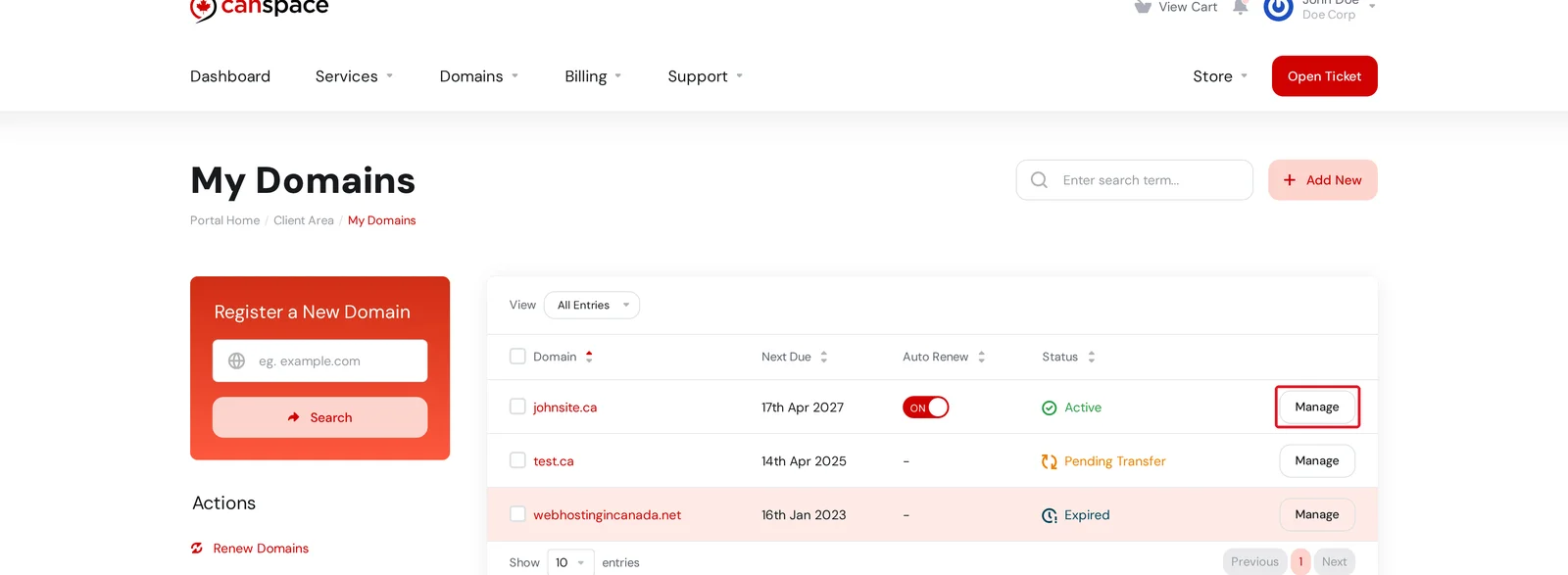
Log in to the client area and open Domains → My Domains. Find the domain you want the EPP code for and click Manage.
-
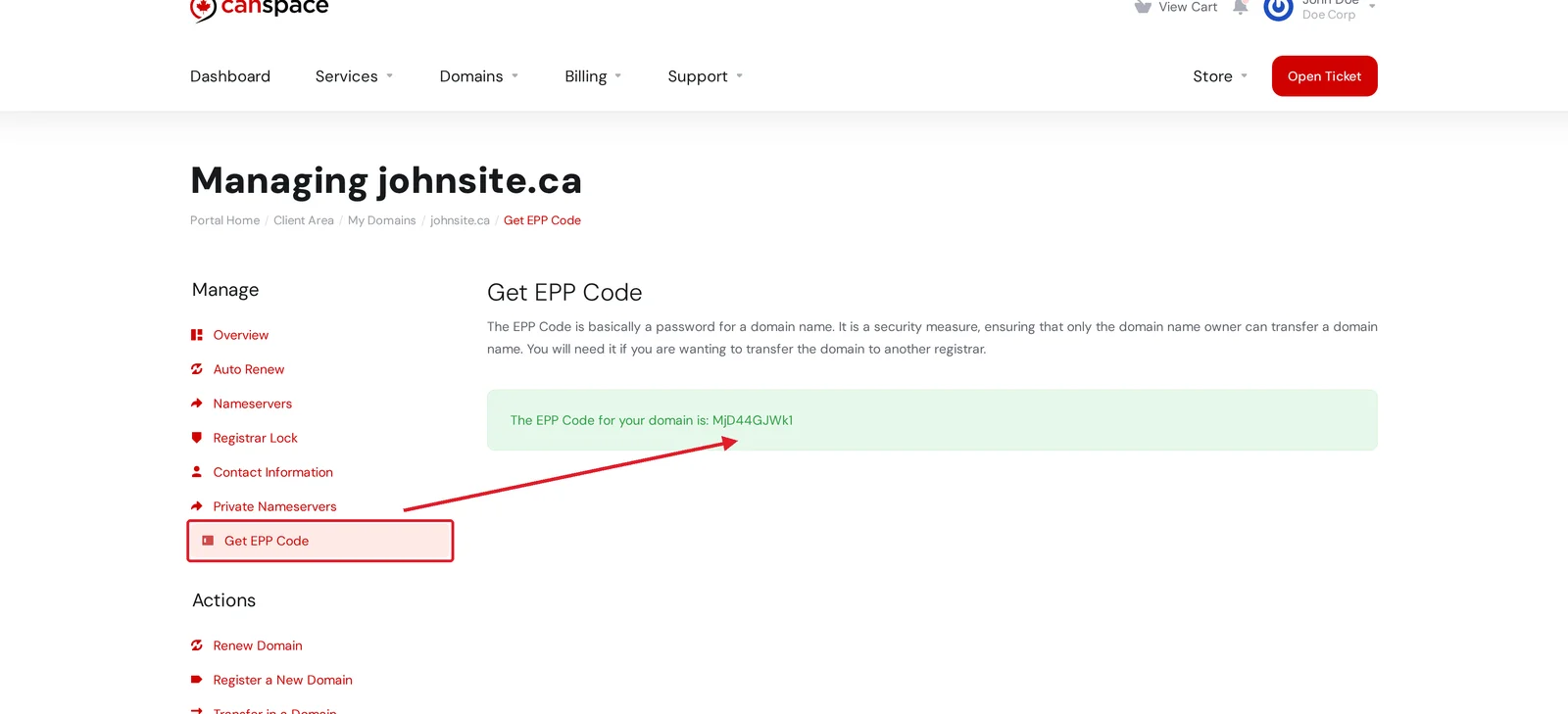
In the Manage menu on the left, click Get EPP Code. Your code appears in the green box on the right. Copy it exactly as shown, including the case.
What to do next
Paste the code into the transfer form at the registrar you are moving the domain to. Before doing that, make sure your domain is unlocked at CanSpace so the transfer can complete. You can toggle this under Manage → Registrar Lock.
Most transfers take a few days to complete. You will receive email updates as the process progresses.
Not working?
A few common reasons an EPP code might be rejected at the gaining registrar:
- Domain is locked. Go to Manage → Registrar Lock and unlock the domain first.
- Code is stale. If you generated the code a while ago, come back to this page and refresh it.
- Typo when copying. EPP codes are case sensitive. Copy and paste rather than type by hand.
Related articles
- How do I change my nameservers?
- How do I enable or disable auto-renew for my domains?
- How do I update the WHOIS information for my domain?
Still stuck? Open a support ticket