
Auto-renew keeps your domains from expiring by automatically charging your payment method when renewal is due. You can turn it on or off per domain from the client area.
Quick steps: Client Area → Domains → Manage → Auto Renew tab → toggle the switch.
Steps
-
Log in to the client area and open Domains → My Domains. Click Manage beside the domain you want to change.
-
Click the Auto Renew tab in the Manage menu on the left. Toggle the Auto Renewal Status switch on or off.
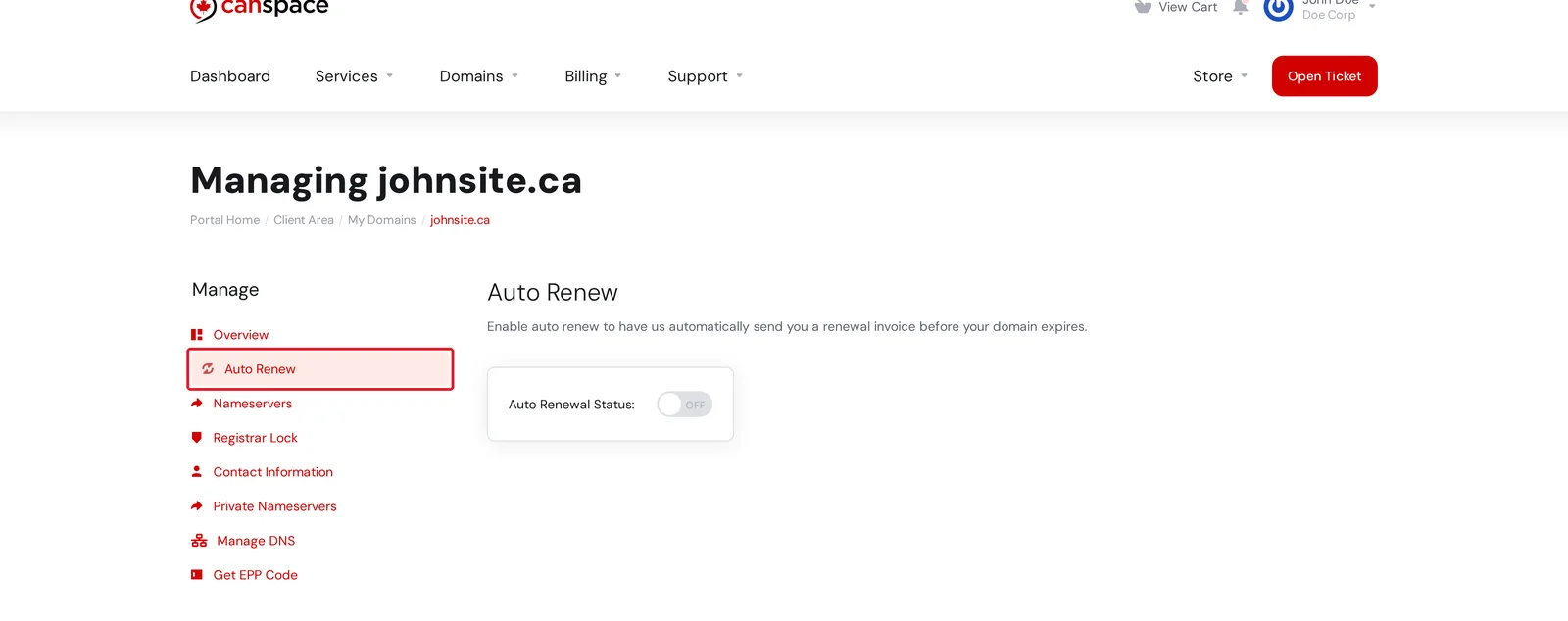
The change saves immediately — no need to click anything else.
What happens with auto-renew on
- About 30 days before expiry, we generate a renewal invoice and attempt to charge the payment method on file.
- If the payment goes through, your domain is renewed for the current billing cycle and you'll receive a confirmation email.
- If the payment fails, we retry and send reminder emails. You can also pay the invoice manually from the client area.
What happens with auto-renew off
- You'll still receive reminder emails before expiry.
- No invoice is generated and no payment is taken automatically.
- If you change your mind, you can turn auto-renew back on anytime, or pay for a manual renewal from the client area.
- If you do nothing, the domain will eventually expire and be released back to the registry — so make sure you intend to let it go.
Heads up: A domain that expires isn't immediately lost — there's usually a 15-30 day redemption period where you can recover it (often with an extra fee). But once that window closes, the domain is released to the open market and anyone can register it. If you intend to keep a domain, keep auto-renew on.
Bulk changes
To toggle auto-renew on several domains at once, select the domains from the My Domains list and use the bulk action bar — see How do I make bulk changes?
Related articles
Still stuck? Open a support ticket