
Your hosting plan comes with your primary domain built in, but you can add additional domains, subdomains, or alternate names to the same account. They all share the same cPanel, same disk space, and same email infrastructure — perfect for running multiple sites on one plan.
Pick the right type of domain
cPanel's current Domains tool handles all three use cases from one form. Which option you choose depends on what you're trying to do:
| You want to... | Use this type | Example |
|---|---|---|
| Host a completely different website | Addon domain | yourdomain.com hosts your main site; anotherbusiness.ca hosts a different site with its own content |
| Create a section of an existing site | Subdomain | shop.yourdomain.com for an online store; blog.yourdomain.com for a blog |
| Have two domains show the same site | Alias (formerly "parked domain") | yourdomain.ca and yourdomain.com both show the same site |
Before you start
- For an addon domain — the domain needs to be registered (with CanSpace or elsewhere) and its nameservers must point to your CanSpace hosting server. If the domain is with another registrar, update the nameservers there first.
- For a subdomain — the main domain has to already be on your account. That's it.
- For an alias — same as addon domain — registered and nameservers pointing to your hosting server.
Add a domain
-
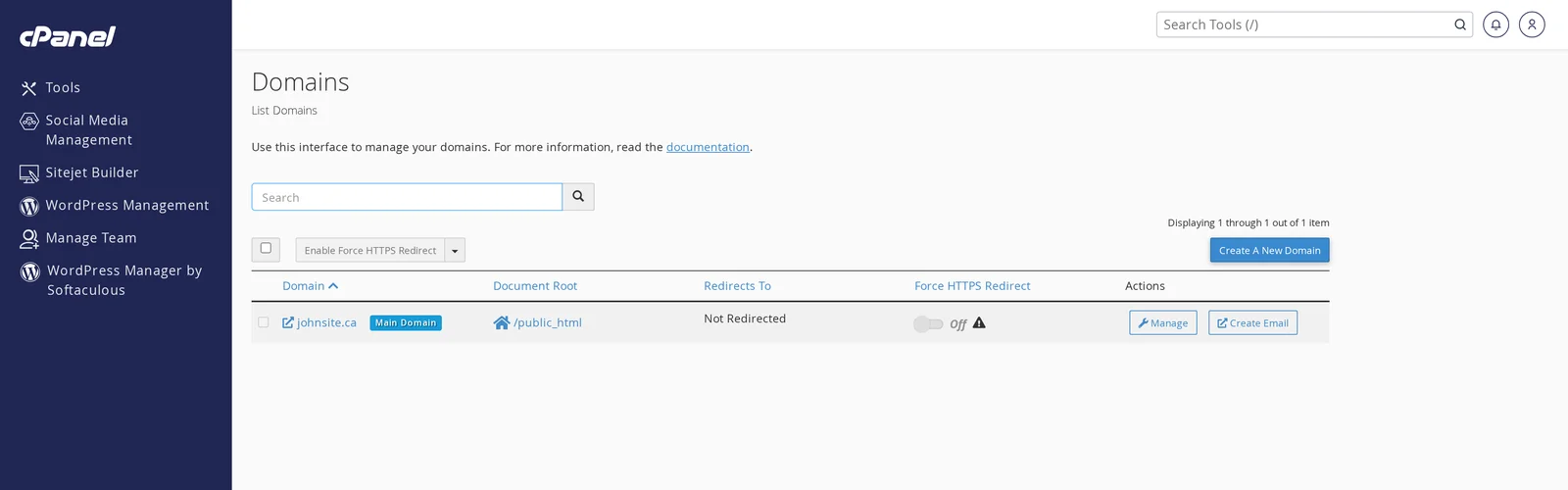
Log in to cPanel, then open the Domains tool (in the Domains section).
-
Click Create A New Domain in the top-right.
-
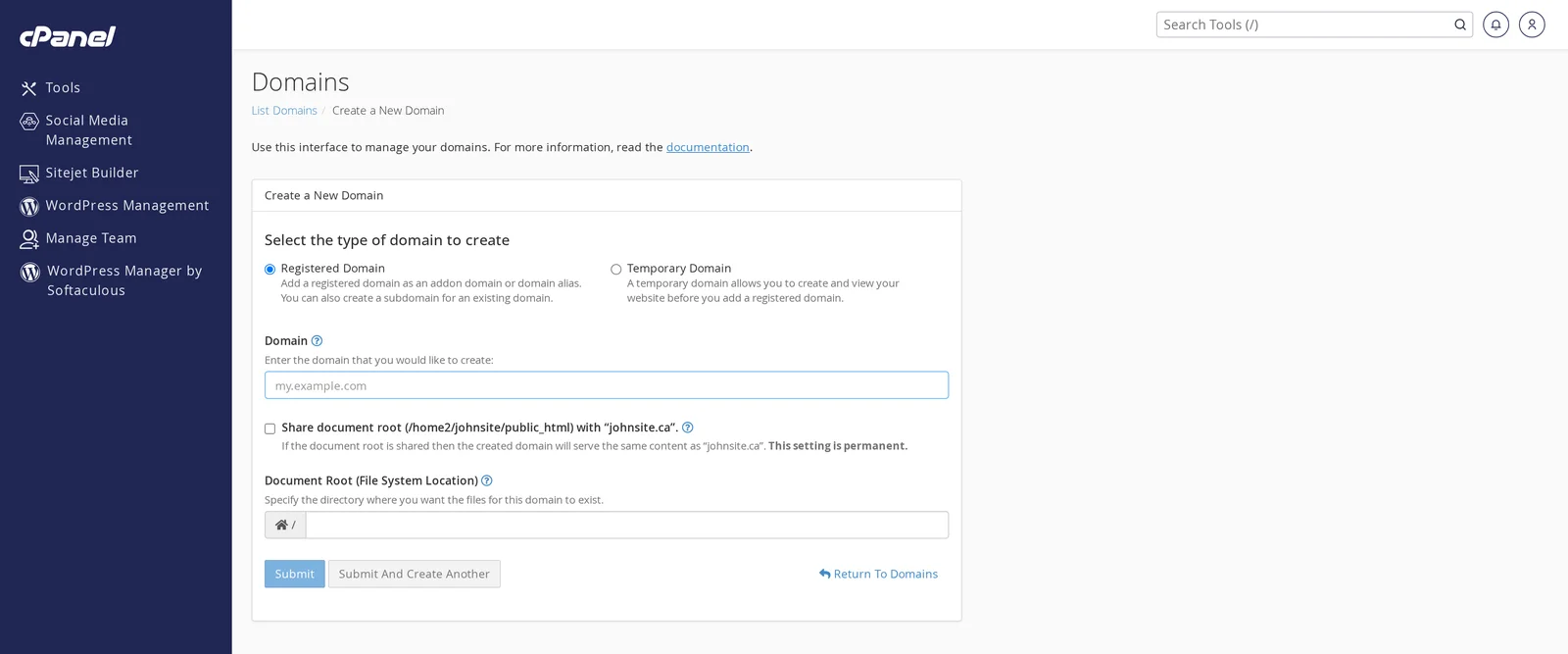
On the Create a New Domain form, choose the type of domain:
- Registered Domain — for an addon domain or alias (use a domain you already own)
- Temporary Domain — a throwaway
yourdomain.whatever.canspace.caname, useful for testing before a real domain is in place
-
Enter the Domain:
- Addon domain:
anotherbusiness.ca - Subdomain:
shop.yourdomain.com
- Addon domain:
-
Decide on the Document Root:
- Default (recommended) — cPanel creates a new folder like
public_html/anotherbusiness.ca/. Your new domain will show a completely separate set of files. - Share document root with primary domain — tick this box if you want this to be an alias (both domains show the same content). Typically used for
yourdomain.com+yourdomain.ca.
- Default (recommended) — cPanel creates a new folder like
-
Click Submit. cPanel creates the domain, sets up the folder, and adds the DNS entries it needs.
After adding
- Upload the site files to the new document root (via File Manager, FTP, or SFTP).
- An SSL certificate is issued automatically within a few hours as long as the domain resolves to our server.
- You can create email addresses at the new domain (
[email protected]) from the Email Accounts tool.
Deleting a domain
From the Domains list, click Manage beside the domain, then Remove Domain. This detaches the domain from cPanel but does not delete the files in its document root — you can delete those separately via File Manager if you want.
Related articles
Domain not resolving or running into an issue? Open a support ticket