
Slow sites lose visitors and rank worse in search results. If your site is loading sluggishly, this checklist will help you narrow down the cause and fix it. The list goes from quickest wins to deeper investigations.
1. Measure first
Before changing anything, run your site through a benchmark so you have a baseline:
- PageSpeed Insights — Google's tool. Mobile and desktop scores plus Core Web Vitals.
- WebPageTest — detailed waterfall view of every request.
- GTmetrix — friendlier UI, similar metrics.
Note your starting numbers. After each change, re-run the test to confirm it actually helped.
2. Optimise your images
Images are usually the single biggest contributor to page weight. Three things to check:
- Format. Convert PNG/JPG to WebP for 25-50% smaller files at the same quality. Most image editors export WebP; for batch conversion, Squoosh handles single files in-browser.
- Resolution. An image displayed at 800px doesn't need to be 4000px wide. Resize down to roughly 1.5-2x the display size (for retina) and not larger.
- Compression. Quality 75-85 looks identical to quality 100 in most cases, with much smaller file sizes.
For WordPress, plugins like EWWW Image Optimizer, ShortPixel, or TinyPNG automate this.
3. Enable caching
If your site doesn't cache pages, every visitor triggers a fresh database query and PHP execution. Caching turns that into a single static file read — usually 10-50x faster.
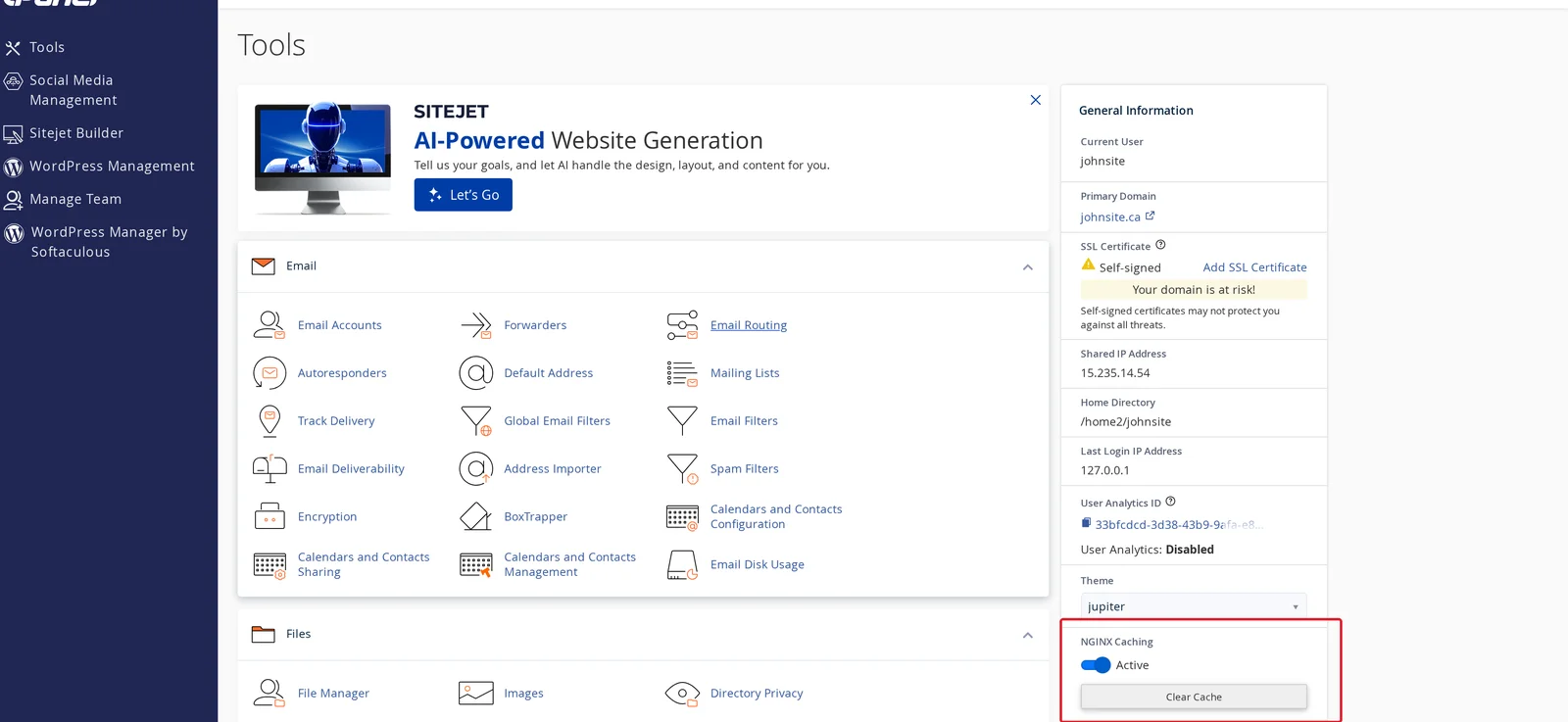
- nginx-level caching on our shared servers is enabled by default. Confirm it's on by visiting cPanel home and looking at the NGINX Caching panel in the right sidebar.
- Application-level caching — WordPress: WP Super Cache, W3 Total Cache, WP Rocket (paid). Other CMSes have equivalents.
- Browser caching via
.htaccessrules tells visitors' browsers to keep cached copies of static assets between visits.
4. Use a CDN
A CDN (Content Delivery Network) caches your static files at edge servers around the world, so visitors load assets from a nearby location instead of from Canada. Cloudflare's free plan is the easiest starting point.
CDNs help most for visitors outside Canada or with high-latency connections.
5. Reduce HTTP requests
Every CSS file, JS file, and image on a page is a separate request. Open your browser's Developer Tools (F12) → Network tab → reload your page. If you see 100+ requests, there's optimisation room:
- Combine and minify CSS / JS files where you can. WordPress: most caching plugins do this automatically.
- Lazy-load images below the fold so they only load when scrolled into view.
- Remove unused plugins / scripts. If your site loads a slider library but doesn't have any sliders, that's pure waste.
6. Check your PHP version and limits
Older PHP versions are significantly slower than current ones. Make sure you're on PHP 8.2 or newer:
- cPanel → Select PHP Version (or MultiPHP Manager).
- Switch to a newer version if you're on 7.x.
If your site is hitting memory_limit or max_execution_time errors, see Change your PHP version and tune PHP settings.
7. Look at your database
Slow database queries are a common bottleneck on dynamic sites. Two quick wins:
- Empty trash and drafts. WordPress sites accumulate revisions, spam comments, and drafts that bloat the database. The WP-Optimize plugin (or
wp post delete --status=trashvia WP-CLI) cleans them up. - Repair / optimise tables. phpMyAdmin → select all tables → Repair → Optimize. Reclaims unused space and rebuilds indexes.
8. Audit your plugins / extensions
Each plugin adds code that runs on every request. Plugins from poorly-maintained authors, or plugins that load on every page when they only need to load on a few, drag everything down.
- Deactivate plugins you don't use.
- For WordPress: Query Monitor shows you which plugins are slowest and which queries take the longest.
- Replace heavy plugins with lighter alternatives where possible. (e.g. a feature-rich slider replaced by a simple CSS one.)
9. Check for external services slowing you down
Third-party scripts (Google Analytics, Facebook Pixel, embedded chat widgets, custom fonts loaded from external CDNs, social media embeds) all add latency. Open Developer Tools → Network → sort by time. Anything taking more than 200ms from an external domain is a candidate for review.
10. Check your hosting plan
If you've worked through everything above and are still not happy with performance, you might have outgrown your plan. Signs:
- You're routinely hitting CPU or memory limits (see cPanel → Resource Usage).
- Heavy traffic spikes regularly slow the site.
- You're running an e-commerce site with hundreds of products on a Starter plan.
Upgrading from Starter or Medium to Professional, or from shared to a VPS, gives you significantly more CPU, memory, and IO. Upgrade your hosting plan or open a ticket if you want a recommendation.
11. Server-side issues
Very rarely, slowness comes from a problem on our end (a server under unusual load, a backup running, a brief networking issue). If your site was fast yesterday and is slow today with no changes on your end, open a ticket with the timing details and we'll check.
Related articles
- Speed up your WordPress site
- Change your PHP version and tune PHP settings
- Set up Cloudflare in front of your site
Need a hand diagnosing site speed? Open a support ticket