
If you've uploaded your website but visitors still see a "Coming soon" page, it's almost always one of a handful of things. Work through this list in order — the first two cover the vast majority of cases.
index.phtml in public_html. 2) Confirm your domain's nameservers point to your hosting server. 3) Clear the NGINX cache from cPanel.1. Delete the default index.phtml
Every new cPanel account on our servers ships with a file called index.phtml in its public_html/ folder — a branded "Coming Soon" placeholder page. It's there so a brand-new account isn't a blank screen, but once you upload your real site, it needs to go.
Here's the catch: because index.phtml is processed as PHP, it takes priority over a plain index.html in the same folder. If you uploaded your site and left index.phtml in place, visitors will still see the "Coming soon" page.
Fix:
- Open cPanel and click File Manager (in the Files section).
- Navigate into
public_html/. - Right-click
index.phtmland choose Delete. - Also delete
404.shtmlif you're not using it.
Reload your site. If this was the issue, your real homepage will now appear.
2. Confirm your nameservers point to your hosting
If you registered your domain separately (or transferred it here) and haven't updated its nameservers yet, visitors to your domain don't reach your hosting account at all — they're still hitting wherever the domain used to point.
If your domain's nameservers are pointed at our DNS-only cluster (dns1.canspace.ca and dns2.canspace.ca) but you haven't added records to route the domain to your hosting, visitors will see our default domain parking page, which looks similar to a "Coming soon" page.
Check:
- From any terminal:
dig yourdomain.com NS +short— confirm it returns the correct nameserver pair for your shared hosting server (something likens27.canspace.ca/ns28.canspace.ca). - You can find your correct nameserver pair in your hosting welcome email, or by opening a ticket if you've lost it.
Fix:
- If your domain is registered with CanSpace, see How do I change my nameservers? for how to update them in the client area.
- If your domain is registered with another registrar (GoDaddy, Namecheap, etc.), update the nameservers there — they'll usually have a "Manage Nameservers" or "DNS" option in the domain's settings.
- DNS changes can take up to 24-48 hours to fully propagate worldwide, but most visitors see the new site within an hour or two.
3. Clear the NGINX cache
All of our shared servers run NGINX in front of Apache as a caching layer — it dramatically speeds up your site, but it also means a cached copy of the default "Coming soon" page can linger for a few minutes after you've made changes. If you've deleted index.phtml and uploaded your real site but still see the old page, clear the cache.
You don't need SSH or anything technical — there's a button right in cPanel:
- Open cPanel.
- In the General Information panel in the right-hand sidebar, find NGINX Caching.
- Click Clear Cache.
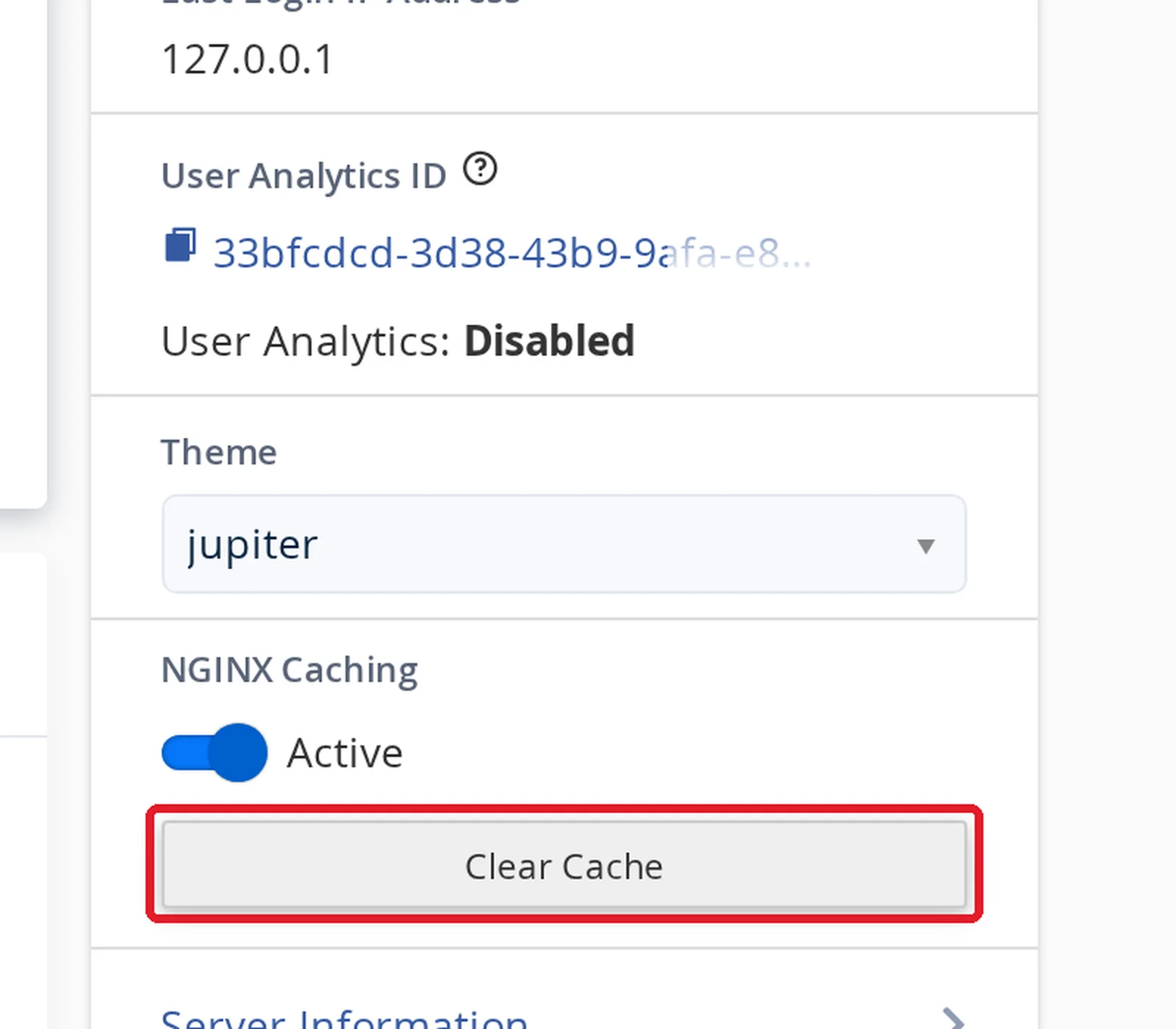
Reload your site in a new private/incognito window (to also bypass your browser's own cache) and you should see your real content.
4. Are your site files in the right place?
When someone visits yourdomain.com, the web server looks in /home2/youruser/public_html/. Anything you put above that folder (in the home directory, or in tmp/, mail/, etc.) is not served to the web.
Common mistakes:
- Files uploaded to
/home2/youruser/directly (one level above public_html) — nothing changed in public_html, so visitors still see the default page. - Files uploaded inside a sub-folder like
public_html/mywebsite/— the site exists atyourdomain.com/mywebsite/but not at the root. - Some FTP clients drop you at the home directory rather than public_html — navigate into public_html before uploading.
5. Is your main page named correctly?
The server only auto-serves a home page if it's named one of these (in this priority order):
index.phtml(our default skeleton — delete it, as above)index.htmlindex.htmindex.phpdefault.htmldefault.htm
If your homepage is called something else (home.html, main.html, etc.), the server won't load it by default. Rename it to index.html.
6. WordPress or Softaculous install in a sub-folder?
If you installed WordPress into public_html/wordpress/ and want it to appear at the root of your domain:
- Move all WordPress files from
public_html/wordpress/up topublic_html/, OR - Reinstall WordPress at the root using Softaculous — see Install WordPress via Softaculous.
Related articles
Tried everything above and still seeing the default page? Open a support ticket and we'll take a look.