
If you've lost access to your WordPress site's admin area, there are a few ways to recover it. This article walks through the three main methods, from easiest to last-resort.
Method 1 — the "Lost your password?" link
Go to your site's admin login page (typically yourdomain.com/wp-admin/ or yourdomain.com/wp-login.php). Below the login form there's a Lost your password? link:
- Click Lost your password? on the login page.
- Enter your admin username or email address. WordPress sends a password reset link to that email.
- Click the link in the email and set a new password.
Method 2 — cPanel WP Toolkit (no password needed)
If the password-reset email isn't reaching you, WP Toolkit in cPanel can log you in as the admin user without a password. Available on all our shared hosting accounts.
- Log in to cPanel (see How do I log in to cPanel?) and open WP Toolkit.
- Find your WordPress installation in the list. Click the Log in button on the dashboard panel.
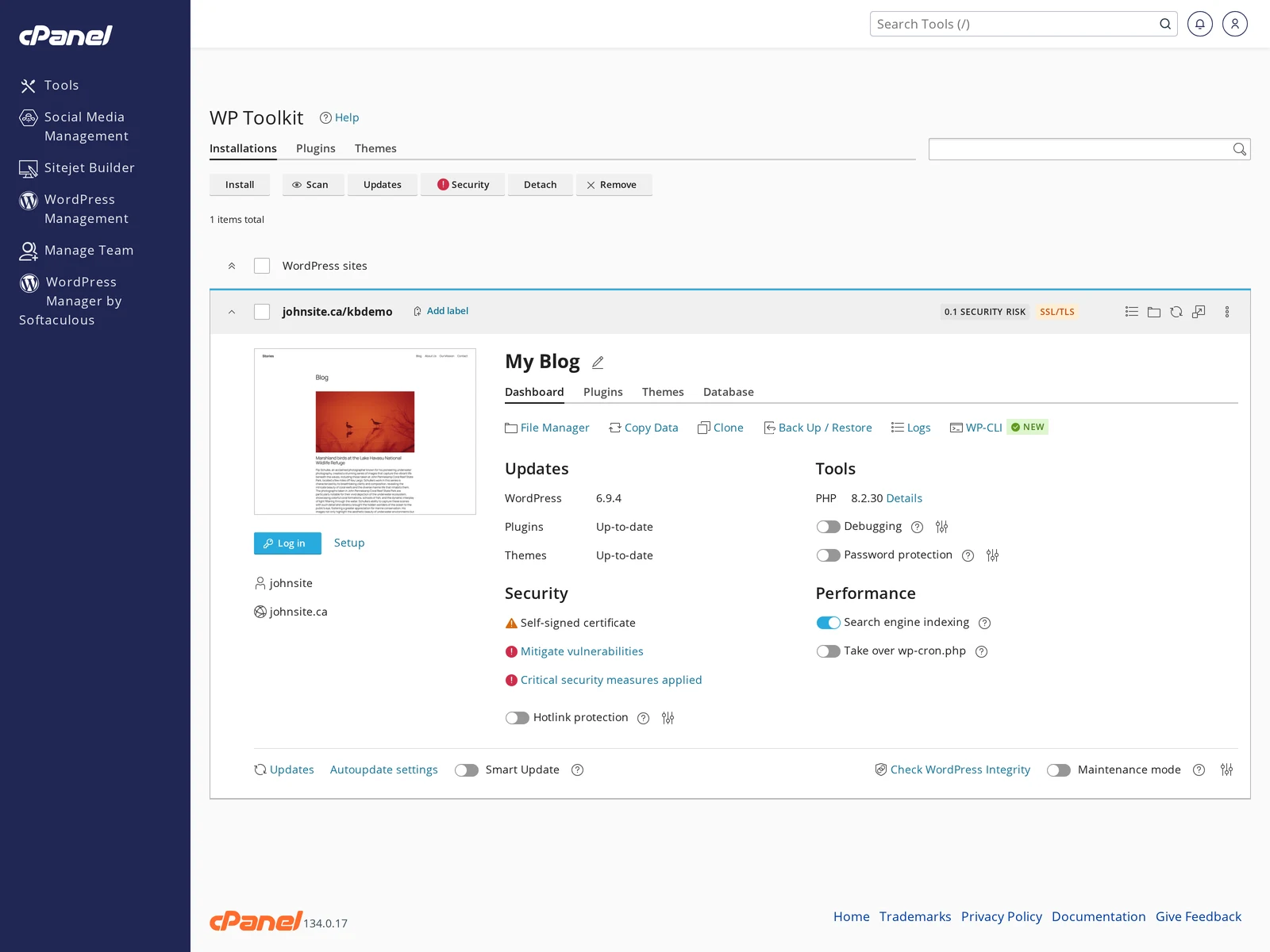
- WP Toolkit opens a new tab and logs you straight in to wp-admin as the site owner.
- Once you're in, go to Users → All Users → [your username] → Edit → Set New Password to set a fresh password. Change the admin email address too, if it's out of date.
Method 3 — reset the password directly in the database (phpMyAdmin)
Last resort, for when you can't log in to WordPress at all and WP Toolkit isn't available (non-CanSpace host, or custom setup). This edits the password hash directly in the database.
- Open cPanel and click phpMyAdmin under the Databases section.
- Select your WordPress database from the left sidebar. If you're not sure which one, check the
DB_NAMEvalue in your site'swp-config.phpfile. - Click the table named
wp_users(or with your table prefix, e.g.wpxy_users). - Find the row for your admin user, and click Edit on that row.
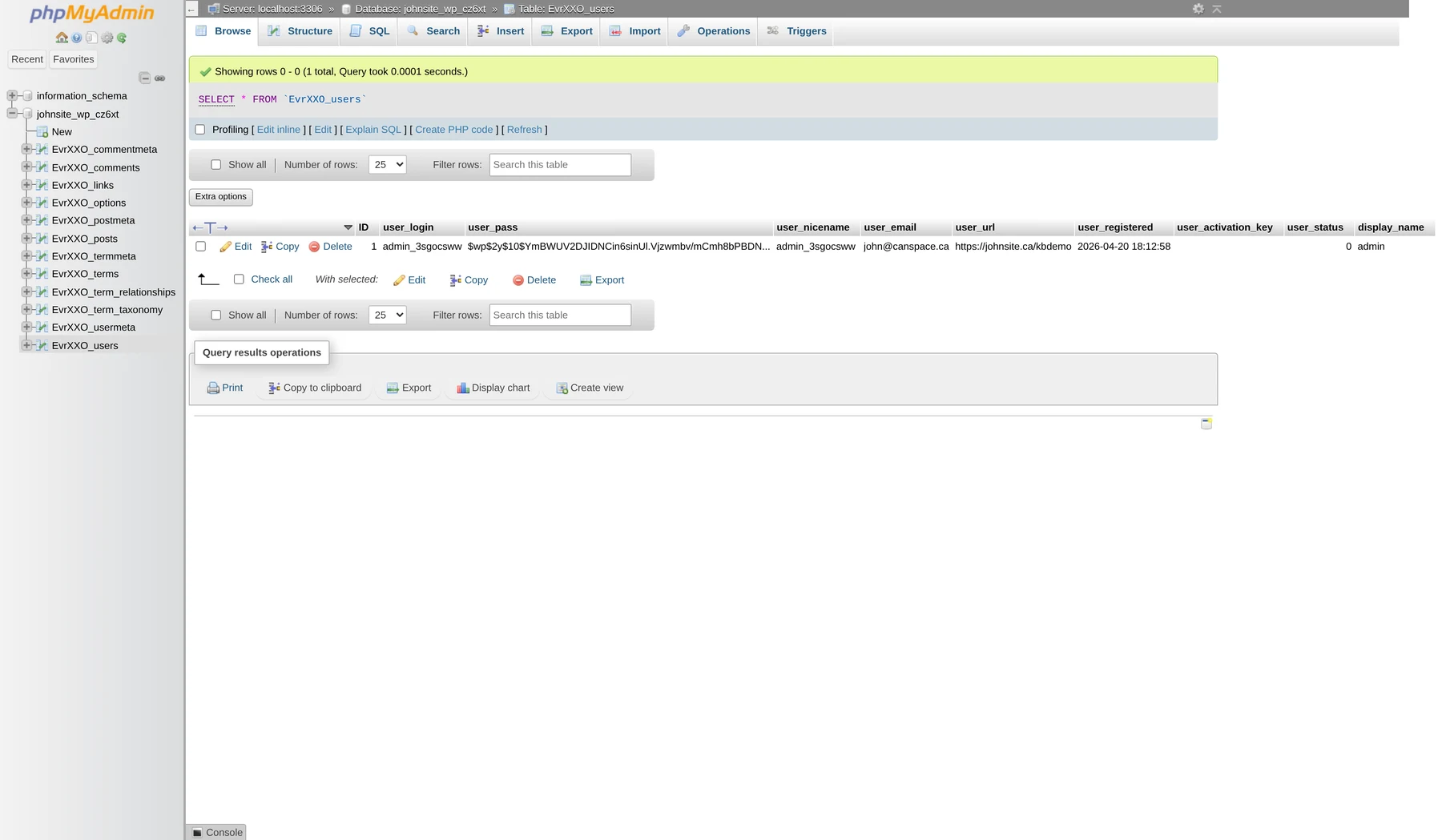
- In the edit form, find the
user_passfield. In the Function dropdown for that row, select MD5. In the Value field, type your new password (in plain text). - Click Go at the bottom.
Log in at your site's /wp-admin/ with the new password, then go to your user profile and change the password again to trigger the upgrade to WordPress's normal hash format.
What if I don't know my username?
In the wp_users table you can see every admin user's user_login and user_email. Pick the one you want to reset. If there are multiple admins and you're not sure which is yours, check wp_usermeta for each user's wp_capabilities (administrators have administrator in that value).
I can't find my wp-config.php / database name
Use the cPanel File Manager: navigate to public_html (or wherever WordPress is installed) and open wp-config.php. Look for:
define( 'DB_NAME',     'yourcpuser_wp_xxxxx' );
define( 'DB_USER',     'yourcpuser_wp_xxxxx' );
$table_prefix = 'wp_';
Use the DB_NAME in phpMyAdmin, and the $table_prefix to find the right users table (e.g. wp_users or wpxy_users).
Related articles
- Change and update WordPress URLs in the database
- cPanel Databases section
- WordPress security hardening checklist
Still stuck? Open a support ticket