
Our servers run multiple versions of PHP side-by-side. You can choose the version that each of your domains uses — and tweak common PHP settings — from a single page in cPanel. This article walks through both.
Which PHP version should you use?
As a rule of thumb: use the newest PHP version your application supports. Newer versions are faster, get security updates, and receive ongoing patches. Older versions (PHP 7.x and below) no longer receive security updates from the PHP project.
If you're not sure what your application supports, the safe answer is to ask the software's documentation or plugin page:
- WordPress: the latest stable release officially supports PHP 7.4 and up, with PHP 8.2 or 8.3 recommended.
- Laravel: check the version you're running — Laravel 10 requires PHP 8.1+, Laravel 11 requires 8.2+.
- Older applications (Joomla 3.x, legacy custom apps, some outdated plugins): may require PHP 7.4 or older. If your site breaks on newer versions, drop back one or two versions at a time until it works, then plan an update.
Change the PHP version for a domain
- Log in to your client area and open cPanel for your hosting account.
- In the cPanel search bar, type multiphp and click MultiPHP Manager.
- Tick the checkbox next to the domain (or subdomain) you want to change. You can tick more than one if you want to change several at once.
- In the PHP Version dropdown at the top right, select the version you want.
- Click Apply. The change takes effect immediately.
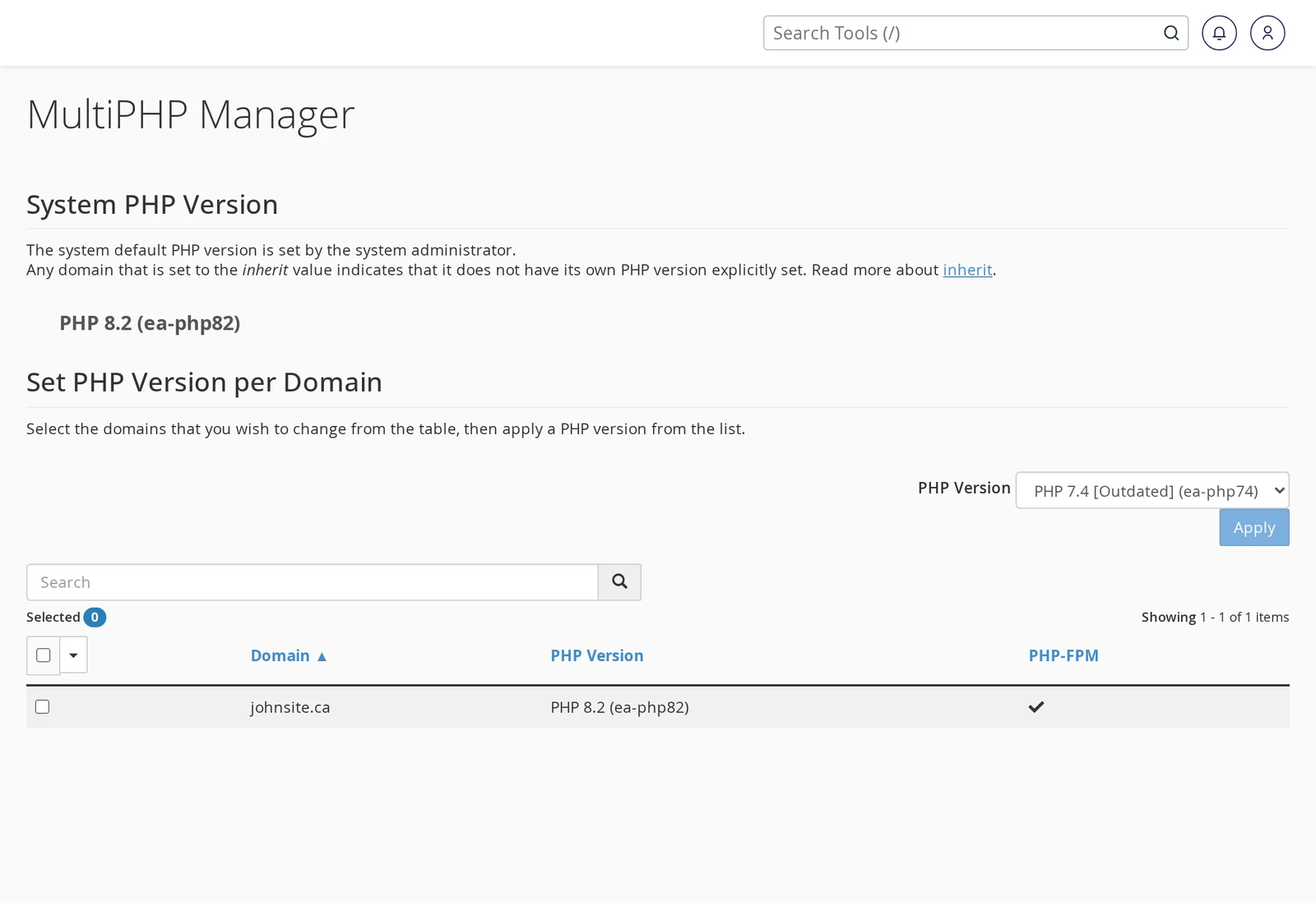
Each domain and subdomain on your account can run a different PHP version independently — useful if you have a modern app on one domain and an older one that still needs PHP 7.4.
Tune PHP settings (memory limit, upload size, etc.)
The default PHP settings on our shared servers already work well for most sites, but occasionally you'll hit a limit — a large file upload rejected as "too big," a plugin installer complaining about memory, or a long-running import timing out. To adjust these settings:
- In cPanel, type multiphp ini and open MultiPHP INI Editor.
- Make sure the Editor Mode tab is on Basic Mode.
- Select the domain you want to adjust from the dropdown.
- Change the values you need and click Apply.
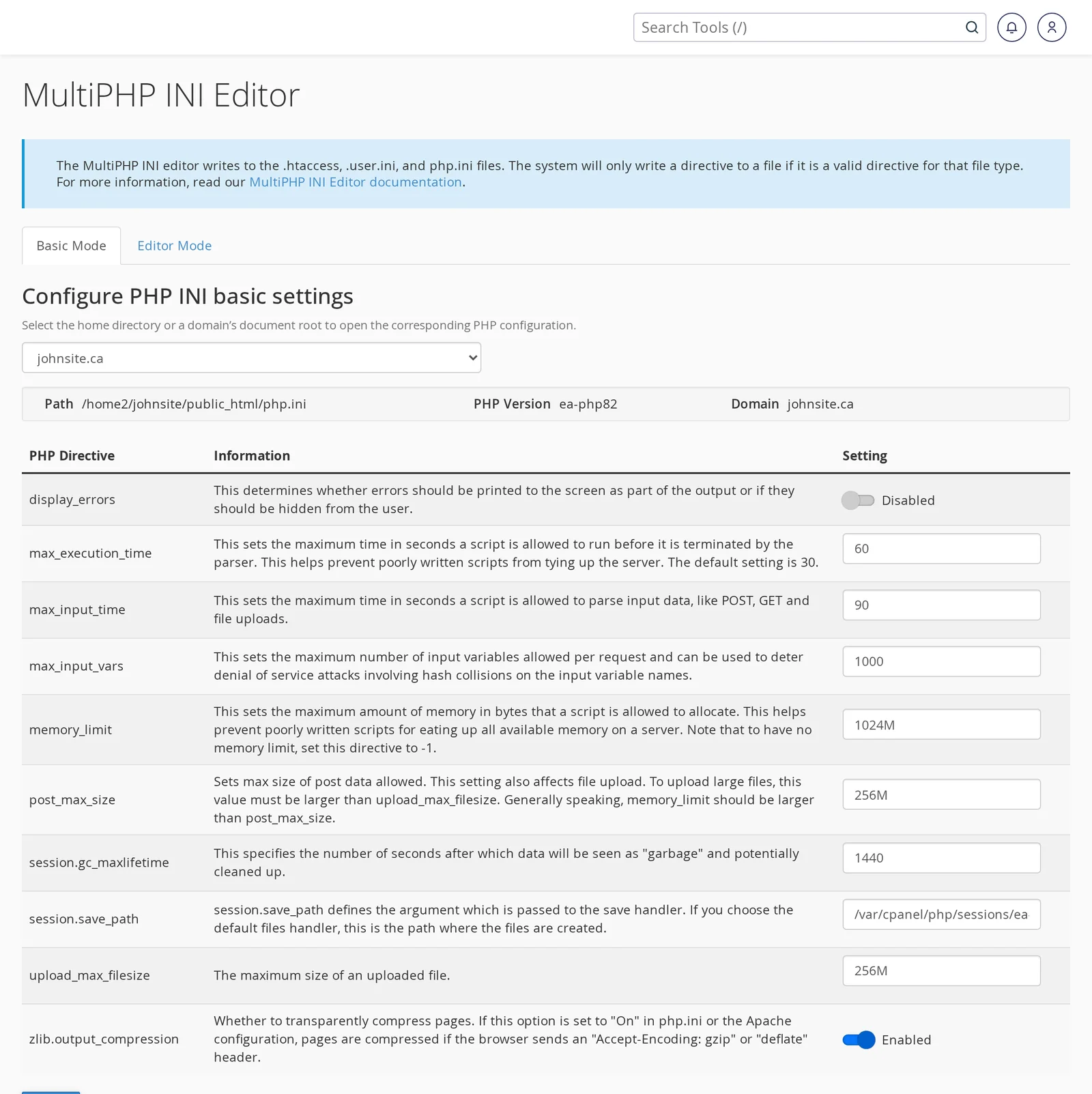
The settings most clients ask about
| Setting | What it controls | When to raise it |
|---|---|---|
memory_limit |
Maximum RAM a single PHP script can use. | Plugin or theme installs fail with "allowed memory size exhausted." |
upload_max_filesize |
Largest single file you can upload. | Media uploads or plugin ZIPs rejected as too large. |
post_max_size |
Maximum size of a form submission (should be ≥ upload_max_filesize). |
Same as upload_max_filesize — raise them together. |
max_execution_time |
How long a PHP script can run before being killed (seconds). | Long imports, large backups, or slow external API calls timing out. |
max_input_time |
How long PHP waits for form data and file uploads. | Large file uploads timing out before they finish. |
After clicking Apply, the changes are live immediately — no restart needed.
What to do if a version you want isn't listed
Our servers carry a range of PHP versions from current to legacy, but we don't always install the very newest version the day it's released. If the version you need isn't in the MultiPHP Manager dropdown, open a support ticket and we'll install it on your server.
If your site breaks after changing versions
If your site works on an older version but throws errors on a newer one, the most likely cause is an outdated plugin, theme, or dependency. Common fixes:
- WordPress: update all plugins and themes to the latest version. If a specific plugin hasn't been updated in years, it may not be compatible with newer PHP — consider replacing it.
- Custom applications: search the PHP error message — it usually names the function or syntax that's no longer supported and points to the file that needs updating.
- As a short-term fix: switch the domain back to the older PHP version while you work out compatibility.
If you need a hand identifying what's causing the error, open a ticket with the error message and we'll take a look.
Related articles
Still stuck? Open a support ticket