
A cron job is a scheduled command — something you want the server to run automatically on a recurring basis. Backups, sitemap regeneration, WordPress cron tasks, database cleanups, periodic imports from an external feed: all classic uses of cron. This article walks through setting one up in cPanel.
Create a cron job
- Log in to your client area and open cPanel for your hosting account.
- In the cPanel search bar, type cron and click Cron Jobs.
- Scroll down to Add New Cron Job.
- Choose a schedule. The easiest way is to pick a preset from the Common Settings dropdown — options like "Once per hour," "Twice a day," "Once a week" will fill in the timing fields for you.
- In the Command field, paste the command you want to run (see the next section for examples).
- Click Add New Cron Job. The job is live immediately and will run on the next scheduled interval.
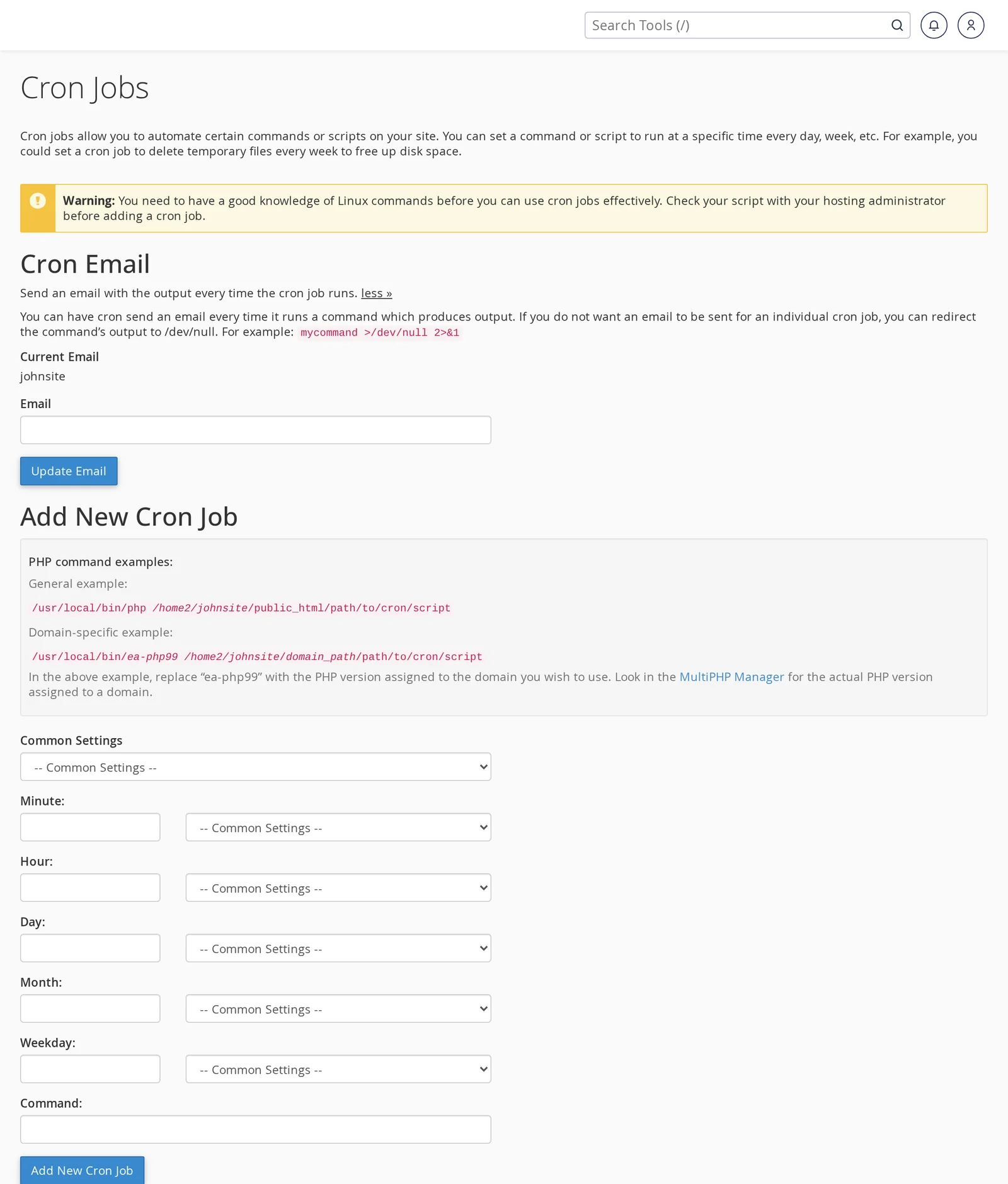
The five timing fields (Minute, Hour, Day, Month, Weekday) use standard cron syntax. Leaving a field as * means "every." So 0 3 * * * means "at minute 0 of hour 3, every day, every month, every weekday" — in other words, 3:00 AM every day. If you're new to it, stick with the Common Settings dropdown.
Common command patterns
Run a PHP script
The right way to run a PHP script via cron is to use the PHP command-line binary and give it the full path to your script:
/usr/local/bin/php /home/yourusername/public_html/path/to/script.phpReplace yourusername with your cPanel username and adjust the path. You can find your cPanel username and home directory in cPanel under the General Information panel on the right side of the home screen.
Using /usr/local/bin/php runs the script under your account's PHP version (the one you set in MultiPHP Manager). Use this pattern — don't use wget or curl to hit the script over HTTP (see the next section for why).
Run a shell script
If you've uploaded a shell script, make sure it's executable (chmod +x script.sh via the File Manager or SSH), then call it directly:
/home/yourusername/scripts/backup.shWordPress (WP-Cron) replacement
By default, WordPress runs its scheduled tasks (publishing scheduled posts, sending newsletter emails, cleaning up old data) whenever a visitor hits your site. On busy sites this is fine; on low-traffic sites scheduled tasks can run late, and on high-traffic sites the load of running them on every request can add up.
To offload WP-Cron to a real system cron, add this line to your wp-config.php just above the "That's all, stop editing" comment:
define('DISABLE_WP_CRON', true);Then create a cron job that fires the WordPress scheduler every 15 minutes:
*/15 * * * * /usr/local/bin/php /home/yourusername/public_html/wp-cron.php >/dev/null 2>&1(Pick "Twice an hour" from Common Settings and tweak if you want a different interval.) WordPress will now handle scheduled tasks on a predictable schedule regardless of site traffic.
Avoid using wget or curl to run PHP scripts
You'll sometimes see tutorials that suggest this approach:
wget -O - -q https://yourdomain.com/script.phpIt works, but we'd recommend against it for these reasons:
- It goes over HTTP, so it counts as web traffic — logged in your access logs and potentially throttled by server-side rules.
- It uses web server timeouts (typically 60–120 seconds), so long-running scripts can get cut off. Command-line PHP has no such limit.
- If your site is behind a firewall, WAF, or CDN (Cloudflare, for example), the cron request may be challenged or blocked.
- It exposes the script URL publicly — which means anyone who discovers it can trigger it too.
Running PHP directly via the CLI binary (see above) avoids all of these.
Silencing cron email output
By default, cron emails you the output of every job to the address in the Email field at the top of the Cron Jobs page. For jobs that run frequently, this can flood your inbox. To suppress output, append this to the end of your command:
>/dev/null 2>&1That redirects normal output and errors to nowhere. If you only want to hear from cron when something goes wrong, append just >/dev/null — errors will still reach your inbox.
You can also leave the Email field at the top of the page blank to disable email output entirely across all your cron jobs.
How often should a cron job run?
Our shared hosting plans allow a minimum interval of five minutes between runs of the same job. Scheduling more frequently than that won't actually run more often, and very frequent cron jobs can impact site performance if the scripts are heavy. Some guidelines:
- Every 5–15 minutes: fine for lightweight tasks (WP-Cron, polling a feed, small cleanup jobs).
- Hourly: a good default for most maintenance tasks.
- Daily: backups, reports, larger cleanups.
- Weekly or monthly: longer-running tasks, full database exports, log rotation.
If you have a script that runs for more than a minute or two, be careful about overlapping runs — don't schedule it every 5 minutes if a single run takes 10. The script can either use a lockfile, or you schedule it less often.
Testing a cron job
Before relying on a scheduled job, it's worth running the command manually once to make sure it works. You can do this two ways:
- Set a near-future schedule — for example, if it's 2:17 PM, schedule the job for 2:20 PM and watch your inbox or the expected output.
- Run it via SSH if your plan includes SSH access (Medium and Professional plans — must be enabled by support). Paste the command and verify it behaves as expected.
If a cron job silently doesn't work, check: the full path to the script is correct, the script has the right permissions (owned by your cPanel user), and any paths inside the script are absolute (cron jobs don't run from your home directory by default).
Related articles
Still stuck? Open a support ticket