
Domain forwarding (also called URL redirection) sends anyone visiting your domain to a different web address — for example, sending example.ca to www.anothersite.com. You can set this up yourself from the client area using the Domain Redirects tool.
Before you start
Your domain's nameservers must be pointed to ours for redirects to work. Open the Nameservers tab under Domains → My Domains → Manage, select Use custom nameservers, and enter:
dns1.canspace.cadns2.canspace.ca
See How do I change my nameservers? if you need help. Allow a few hours for the nameserver change to take effect. The Domain Redirects page will show a warning if your domain isn't pointing at our nameservers yet.
Steps
-
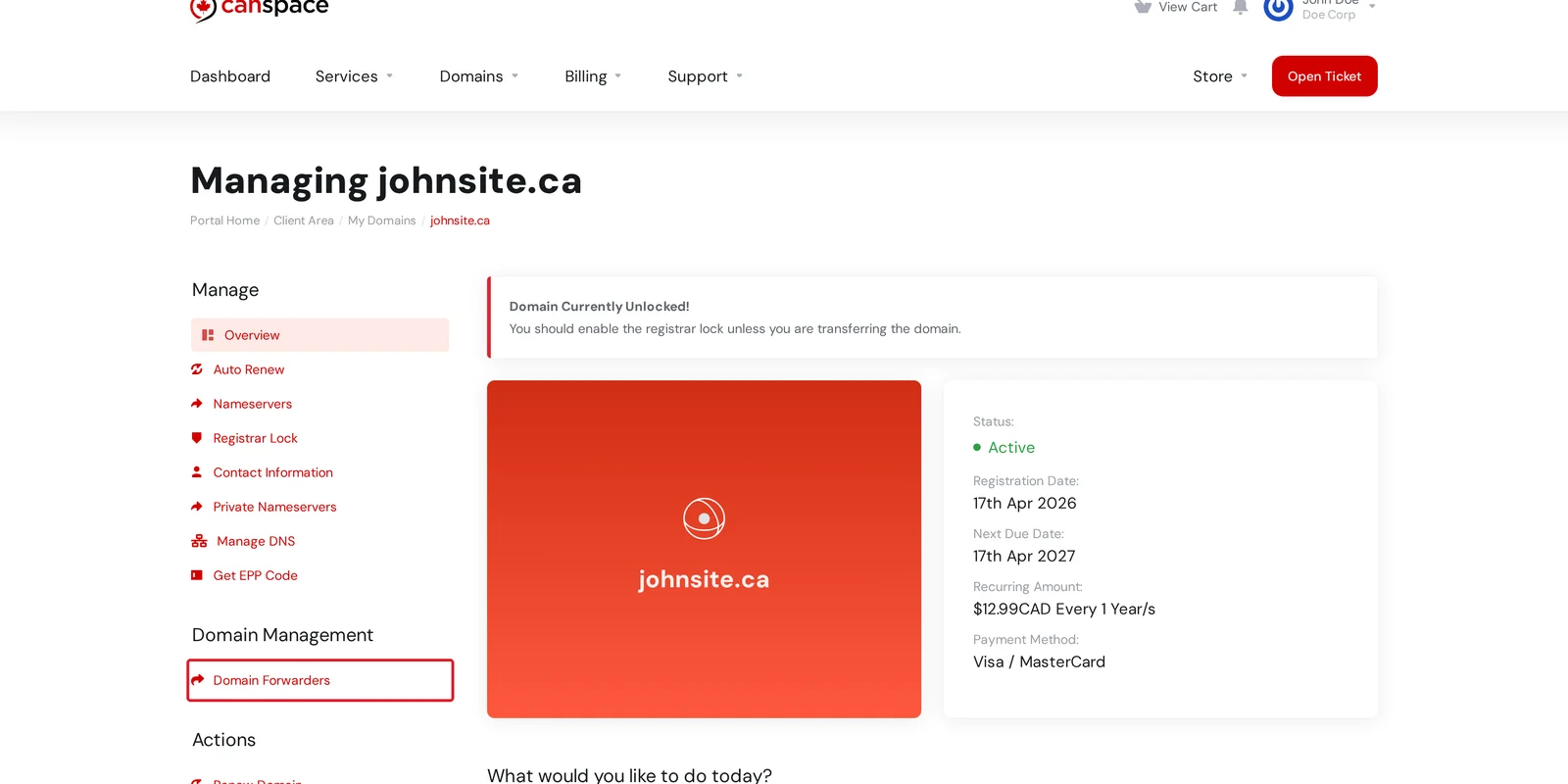
Log in to the client area and open Domains → My Domains. Click Manage beside your domain.
-
In the left sidebar, under Manage, click Domain Redirects.
-
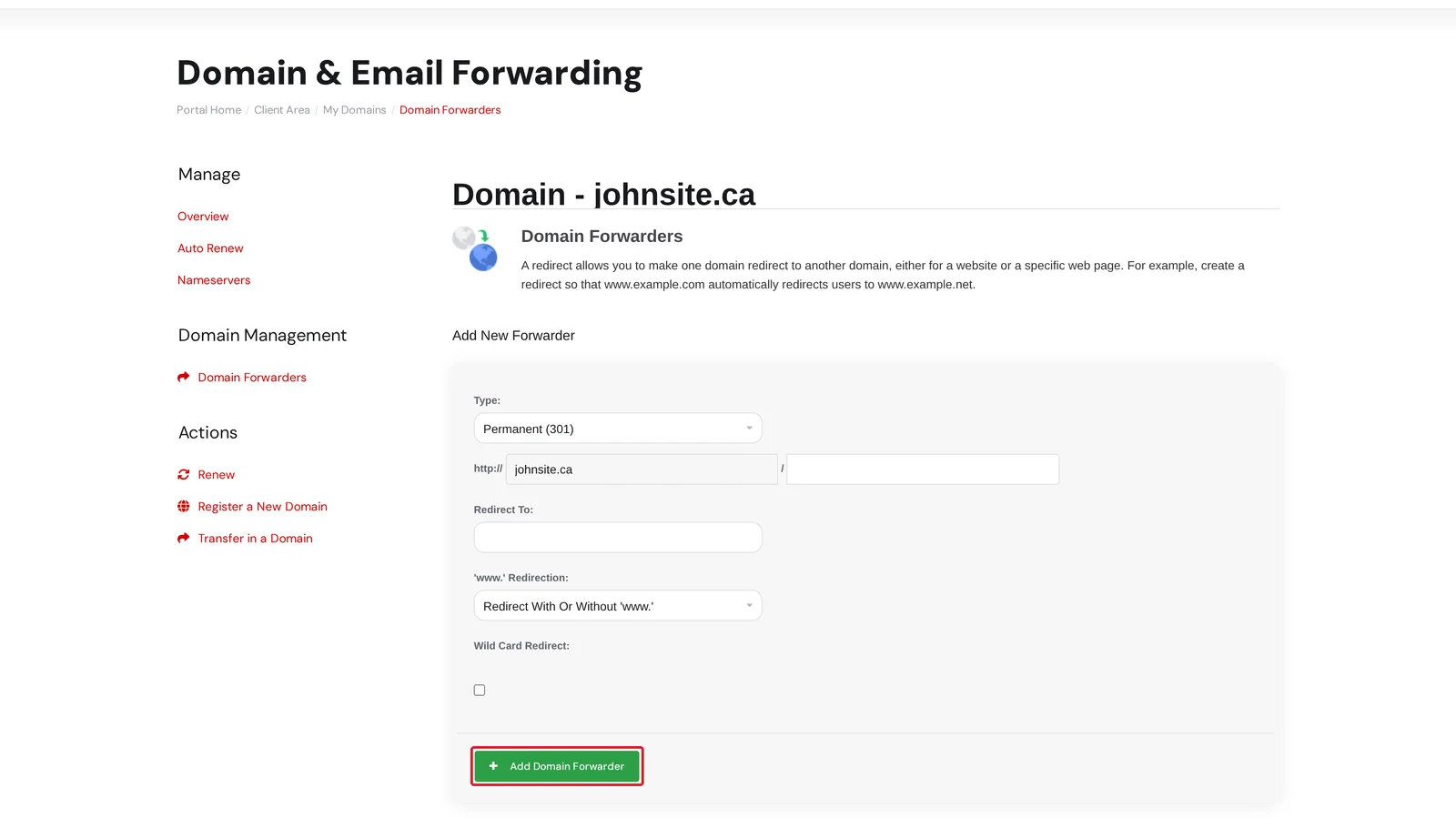
Fill in the Add a redirect form:
- Source: leave this as
/to forward the whole domain, or enter a path such as/shopto forward just that one page. - Redirect to URL: the full destination address, including
https://— for examplehttps://www.anothersite.com. - Type: choose 301 — permanent for a permanent move, or 302 — temporary if you may undo it later.
- Also redirect the www version: leave this ticked so both
yourdomain.comandwww.yourdomain.comforward. It's on by default. - Forward every path (wildcard): tick this to forward every page on the domain (e.g.
yourdomain.com/anything) to the destination. Leave it unticked to forward only the address you specified above.
Click Add redirect to save.
- Source: leave this as
dns1/dns2.canspace.ca, wait for DNS to propagate worldwide (up to 24 hours) before testing it.301 vs 302 — which should I pick?
A 301 permanent redirect tells browsers and search engines the move is permanent. Search engines gradually transfer any ranking from the old domain to the new one. Use this when you're rebranding, consolidating domains, or pointing a new domain at an existing site long-term.
A 302 temporary redirect tells them the move is short-term. Use it if you'll undo the forward later (a site rebuild, a campaign, etc.).
Removing a redirect
Every redirect you've added appears in the Active redirects list near the top of the page. To remove one, click Remove on its row. To change a redirect, remove it and add a new one with the updated details.
Related articles
Still stuck? Open a support ticket