
If you've moved your WordPress site to a new domain — or you've switched from http:// to https://, or between www and non-www — you'll need to update the site URL in the database. Miss any one of the places WordPress stores it and you'll see mixed URLs, broken images, or a site that won't load at all. This article covers the four ways to do it, from easiest to "last resort".
Where WordPress stores its URL
WordPress embeds the full URL (including http:// vs https://) in several places, not just a single setting:
wp_options: thesiteurlandhomeoption values (the "main" site URLs WordPress checks for on load).wp_posts: theguidcolumn for every post (old WordPress versions used this to identify content).wp_posts: any hard-coded absolute URLs inside postpost_content(imagesrc, internal links, etc.).wp_postmeta: anything custom fields, page builders (Elementor, Divi, etc.), or SEO plugins stored with absolute URLs.
Method 1 — update via wp-admin Settings (simplest, but incomplete)
- Log in to your WordPress admin.
- Go to Settings → General.
- Change WordPress Address (URL) and Site Address (URL) to the new URL.
- Click Save Changes. You'll be logged out — log back in at the new URL.
This updates siteurl and home only. Post content, custom fields, and images that reference absolute URLs are NOT updated. Use this method if:
- You're just toggling
httptohttpsand your site doesn't have many hardcoded absolute URLs, or - You're okay running the bulk URL rewrite separately (see Method 2 below).
Method 2 — WP-CLI search-replace (recommended)
WP-CLI is a command-line tool that comes pre-installed on all CanSpace shared servers. It handles serialized data correctly (important for page builders), supports a dry-run mode, and can be scoped to specific tables if needed.
Connect via SSH to your hosting account (see WordPress security hardening checklist for connection details), navigate to your WordPress directory, and run:
wp search-replace 'https://old-url.com' 'https://new-url.com' --all-tables --dry-run
# Review the output; if it looks right, run again without --dry-run:
wp search-replace 'https://old-url.com' 'https://new-url.com' --all-tables
This updates every instance of the old URL in every table, correctly re-serializes PHP arrays (so Elementor, WooCommerce, form plugins, etc. still work), and reports how many rows changed in each table.
https://old.com), then again with the bare host (old.com) to catch protocol-relative or bare references. Also consider the www vs non-www form if applicable.Method 3 — SQL queries in phpMyAdmin
If SSH isn't an option, you can run the search-replace manually as a set of SQL queries. Note that this method does NOT handle serialized PHP data — use it only for simple sites without page builders.
- Open cPanel and click phpMyAdmin under the Databases section.
- Select your WordPress database on the left sidebar. (If you don't know which one, check
DB_NAMEinwp-config.php.) - Click the SQL tab in the top menu.
- Paste the queries below, replacing
https://old-url.comandhttps://new-url.comwith your actual values (no trailing slash). - Click Go.
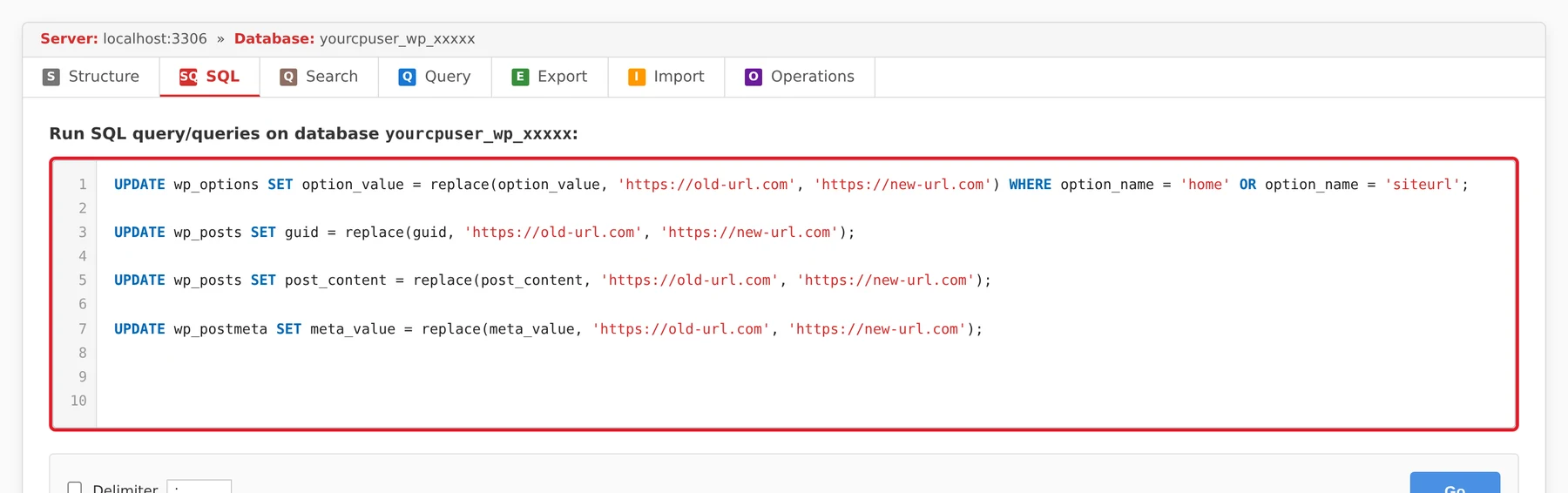
UPDATE wp_options SET option_value = replace(option_value, 'https://old-url.com', 'https://new-url.com') WHERE option_name = 'home' OR option_name = 'siteurl';

UPDATE wp_posts SET guid = replace(guid, 'https://old-url.com', 'https://new-url.com');

UPDATE wp_posts SET post_content = replace(post_content, 'https://old-url.com', 'https://new-url.com');

UPDATE wp_postmeta SET meta_value = replace(meta_value, 'https://old-url.com', 'https://new-url.com');wpxy_options instead of wp_options (custom prefix), update each table name in the queries above. Check your wp-config.php for the $table_prefix value.REPLACE breaks serialized PHP data. If your site uses page builders (Elementor, Divi, Beaver Builder), WooCommerce, Gravity Forms, or most other plugins that store complex settings — use Method 2 (WP-CLI) instead, or you'll end up with corrupted data.Method 4 — emergency URL override via wp-config.php
If your site is completely broken and you can't even reach wp-admin, you can force the URL via wp-config.php. Add these lines just above the /* That's all, stop editing! */ comment:
define( 'WP_HOME',    'https://new-url.com' );
define( 'WP_SITEURL', 'https://new-url.com' );
These override the database values entirely, so they take effect immediately. This is a temporary workaround — the proper fix is to update the database with Method 2 or 3, then remove these lines from wp-config.php.
Before you start: back up first
Before running bulk URL replacements, make a database backup. The fastest way is via cPanel:
- Open phpMyAdmin.
- Select your WordPress database.
- Click the Export tab → Quick → Go. You'll get a
.sqlfile download.
If something goes wrong, you can re-import the backup via phpMyAdmin → Import.
After the update
- Flush WordPress permalinks: Settings → Permalinks, click Save Changes (no actual changes needed) to rebuild rewrite rules.
- Clear caches: if you have a caching plugin (WP Rocket, W3 Total Cache, LiteSpeed, etc.), clear the cache.
- Page builders: Elementor users should run Elementor → Tools → Regenerate CSS & Data.
Related articles
- How to reset your WordPress administrator login
- cPanel Databases section
- How to preview your site before updating DNS
Still stuck? Open a support ticket