
Softaculous is a one-click installer built into cPanel that sets up WordPress, Joomla, Magento, and hundreds of other open-source web applications in a couple of minutes — no FTP, no database creation, no config files.
What's available
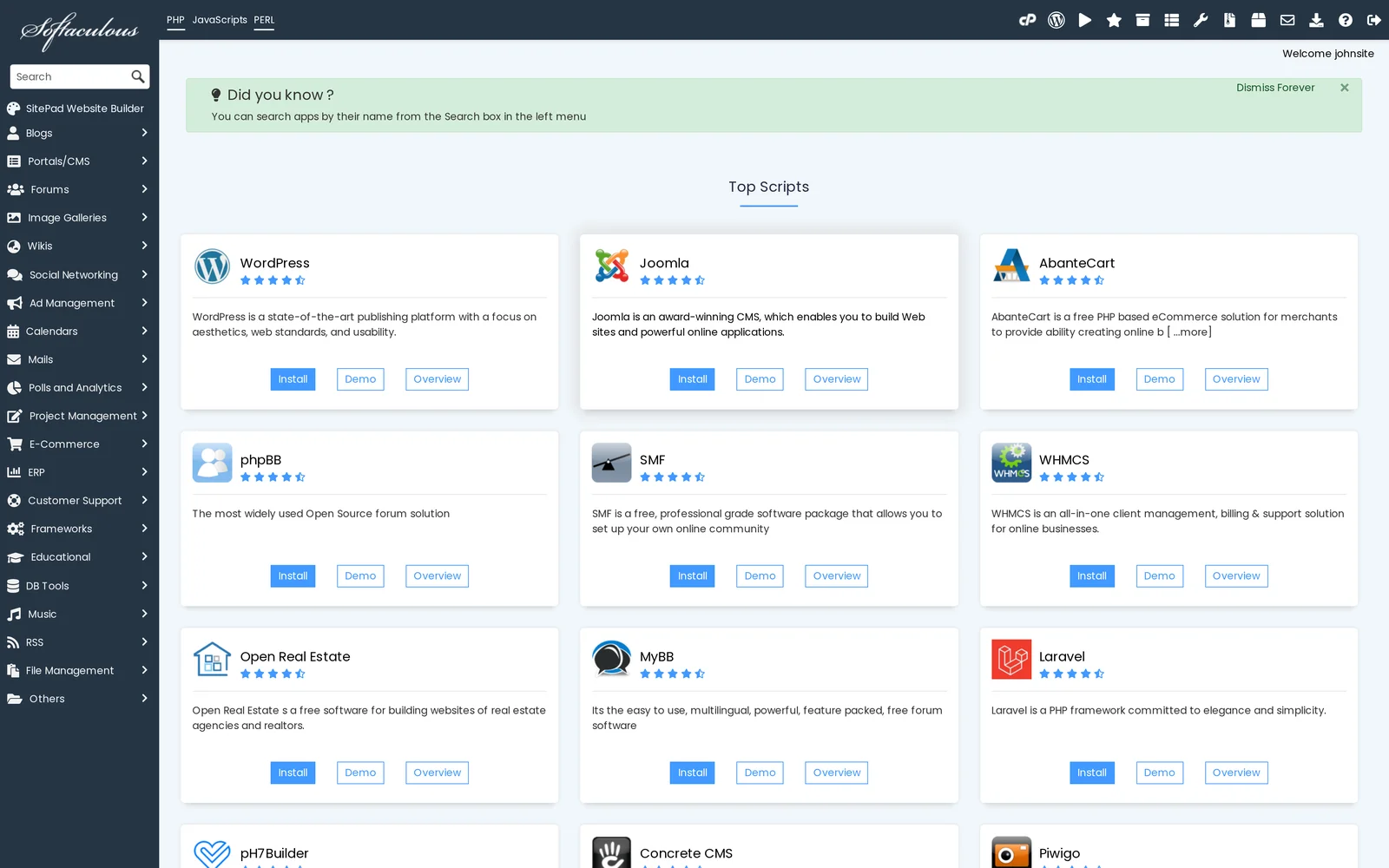
Softaculous includes 400+ scripts across categories like blogs, CMS, forums, e-commerce, project management, and more. The most popular ones:
- WordPress — the world's most popular CMS, used by about 40% of all websites
- Joomla — full-featured CMS with a strong multilingual and multi-user focus
- Magento — enterprise e-commerce platform
- phpBB — forum software
- Moodle — learning management system
- OpenCart, PrestaShop — lighter e-commerce
- MediaWiki, Drupal, Ghost — and many more
Install an app (example: WordPress)
-
Log in to cPanel and open Softaculous Apps Installer from the Software section. You'll land on the Softaculous dashboard showing the top scripts.
-
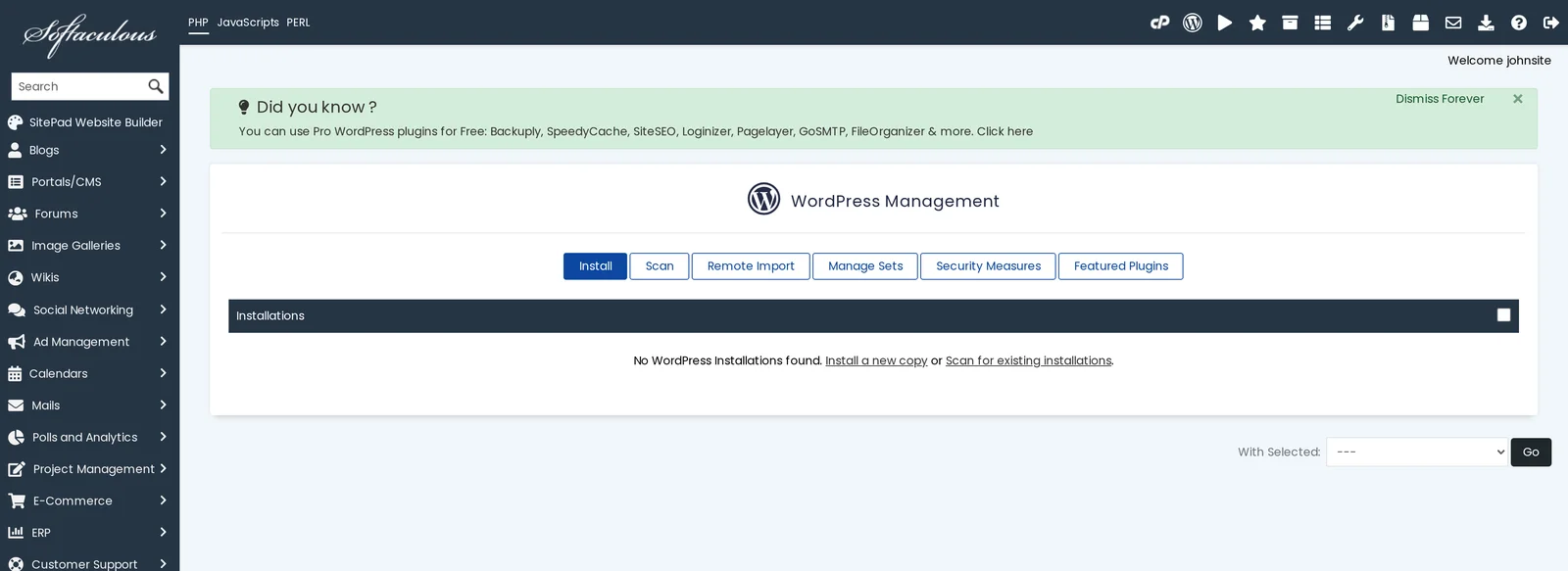
Click the app you want to install (or use the search box). For WordPress, you'll arrive at the WordPress Management panel. Click Install.
-
Fill in the install form:
- Choose Protocol: select
https://(orhttps://www.) once your SSL certificate is active. - Choose Domain: which domain to install on. If you have addon domains, pick the right one.
- In Directory: leave blank to install at the root of your domain (
yourdomain.com). Enter a subdirectory (likeblog) to install atyourdomain.com/bloginstead. - Site Name / Site Description: the public name of your site (can be changed later inside WordPress).
- Admin Username / Password / Email: your WordPress admin login. Use a strong password — these credentials are what protect your site.
- Choose Protocol: select
-
Click Install. Softaculous creates the database, uploads the files, and configures everything. You'll have a working install in about 30 seconds.
index.html or existing WordPress install), Softaculous will warn you or overwrite. Make sure the directory is empty, or install to a fresh subdirectory first.After installation
- Log in to WordPress at
https://yourdomain.com/wp-admin/with the credentials you set. - Install a theme, add your content, and you're off.
- If you plan to run WordPress long-term, work through our WordPress security hardening checklist — the 10-minute checklist blocks most common attacks.
Managing existing installs
Softaculous remembers every install it has done. Return to Softaculous at any time and you'll see your installs under Installations — from there you can:
- Update WordPress core, plugins, and themes
- Create a backup, or restore from a previous one
- Clone the site to a new directory or domain (great for staging)
- Change the URL or site admin email
- Uninstall (removes files and database)
Related articles
- WordPress security hardening checklist
- Reset your WordPress administrator login
- Change WordPress URLs in the database
Run into an issue during installation? Open a support ticket