
SPF, DKIM, and DMARC are three DNS records that tell the rest of the internet which servers are authorized to send email for your domain. Getting them right is the single biggest thing you can do to improve your email deliverability — and cPanel will configure them for you automatically in most cases.
What each record does
- SPF (Sender Policy Framework)
- A public list of IPs and servers that are authorized to send email as your domain. Receiving mail servers use it to reject spoofed mail. If someone forges
[email protected]from a random server, SPF is what tells Gmail "ignore this — it's not from them." - DKIM (DomainKeys Identified Mail)
- A cryptographic signature added to each outgoing email. Receivers verify the signature against a public key in your DNS. If the message was tampered with in transit, the signature breaks and the mail is flagged.
- DMARC (Domain-based Message Authentication, Reporting and Conformance)
- A policy that tells receivers what to do when SPF or DKIM checks fail — quarantine, reject, or just report. Also enables reporting so you can see if anyone is sending mail as your domain.
Check your current status
- Log in to cPanel and open Email Deliverability (you can find it quickly by typing deliverability in the cPanel search bar).
- Find your domain in the list. The Email Deliverability Status column tells you at a glance if everything is valid or if something needs attention.
- If anything is invalid, click Repair in that row and cPanel will add or correct the records for you.
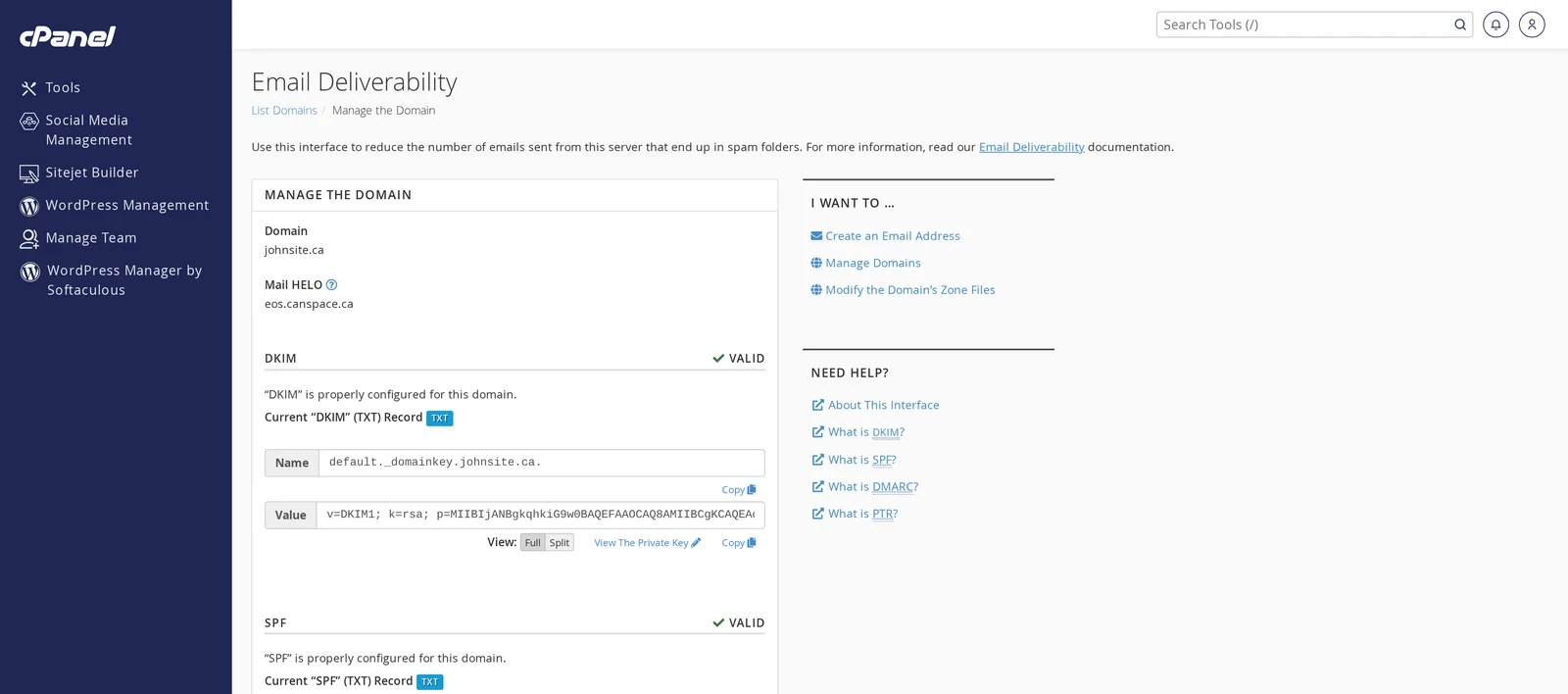
- If you want to see the actual record values (for example, to add them to an external DNS system), click Manage. You'll see each record with its name, value, and status.
If your DNS is somewhere else
If your domain's nameservers point to a third party (Cloudflare, Squarespace, another registrar), cPanel can't add the records for you — it shows you what they should be and you add them manually at your DNS provider.
From the Manage page for your domain in Email Deliverability, copy the Name and Value from each of the three sections:
- Create a TXT record with the SPF name/value
- Create a TXT record with the DKIM name/value (the name usually looks like
default._domainkey) - Create a TXT record with the DMARC name/value (the name is always
_dmarc)
Save them at your DNS provider. Allow a few hours for propagation, then return to the Email Deliverability page in cPanel — the status should flip to Valid.
include: directives into the existing record instead. Two SPF records will break email authentication entirely.Sending from external services (Mailchimp, SendGrid, etc.)
If you use a third-party service to send email on behalf of your domain — newsletters, transactional email, marketing automation — you need to add that service to your SPF record, and usually add a separate DKIM key they provide. Each service has its own documentation; you'll typically add their include: directive to your SPF and create a CNAME or TXT record for their DKIM key.
If you're not sure how to merge the records, open a support ticket with the SPF/DKIM values the service gave you and we'll combine them for you.
Checking if mail is being accepted properly
Send a test message to an account at Gmail, Outlook, or Yahoo. Open the message, view the full headers, and look for:
spf=pass— SPF is workingdkim=pass— DKIM is workingdmarc=pass— DMARC is working
Tools like mail-tester.com also score your sending setup out of 10 and tell you exactly what's missing.
Related articles
Still stuck? Open a support ticket